Create a promotion
Promotions let you offer discounts to your customers — a percentage off, a fixed amount, on the whole order or specific items. You can set when they run and how many times they can be used. Watch the video, then follow along below.
Step 1 — Add a promotion
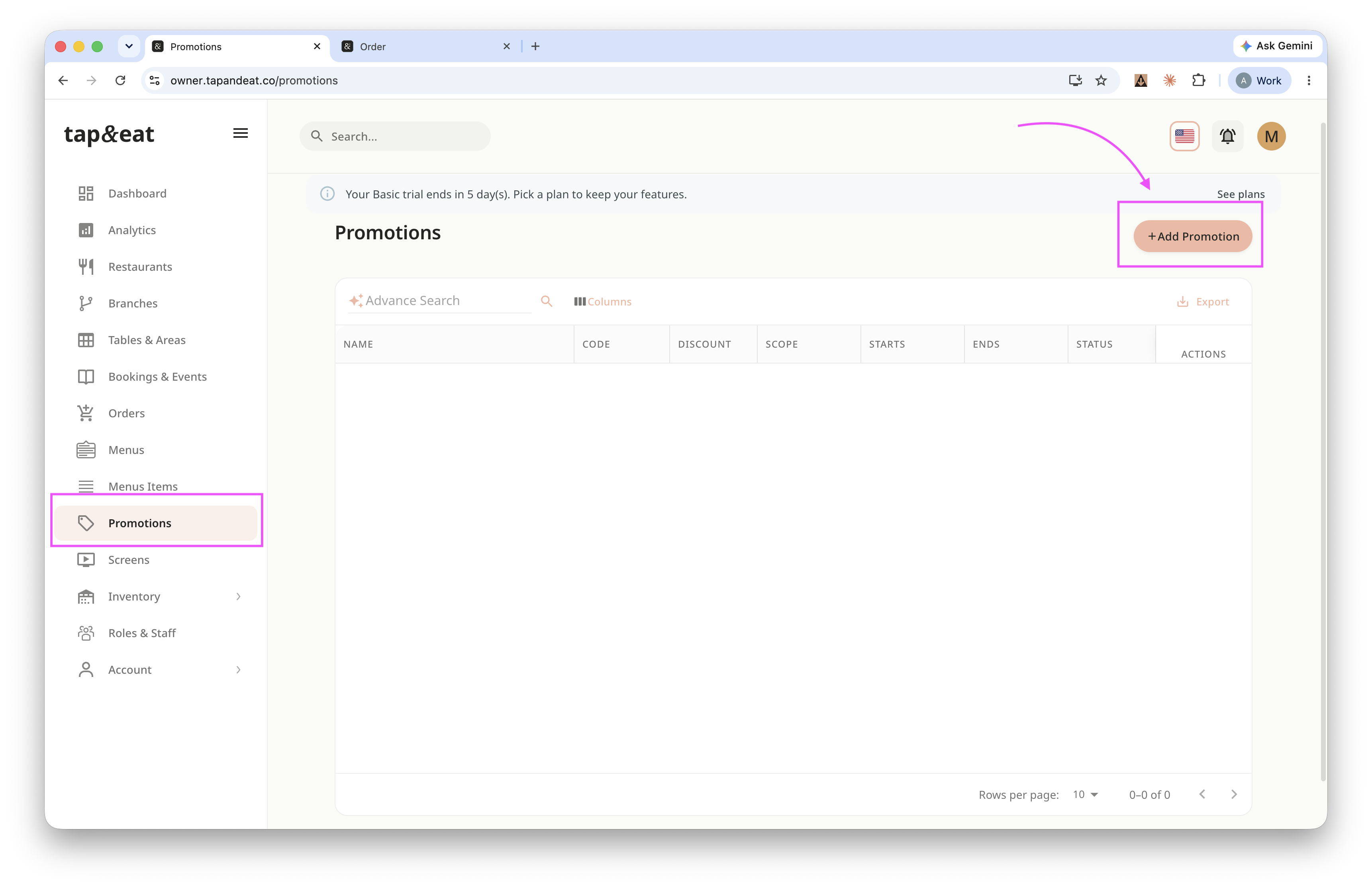
Open Promotions from the sidebar and click Add Promotion.
Step 2 — Promotion details
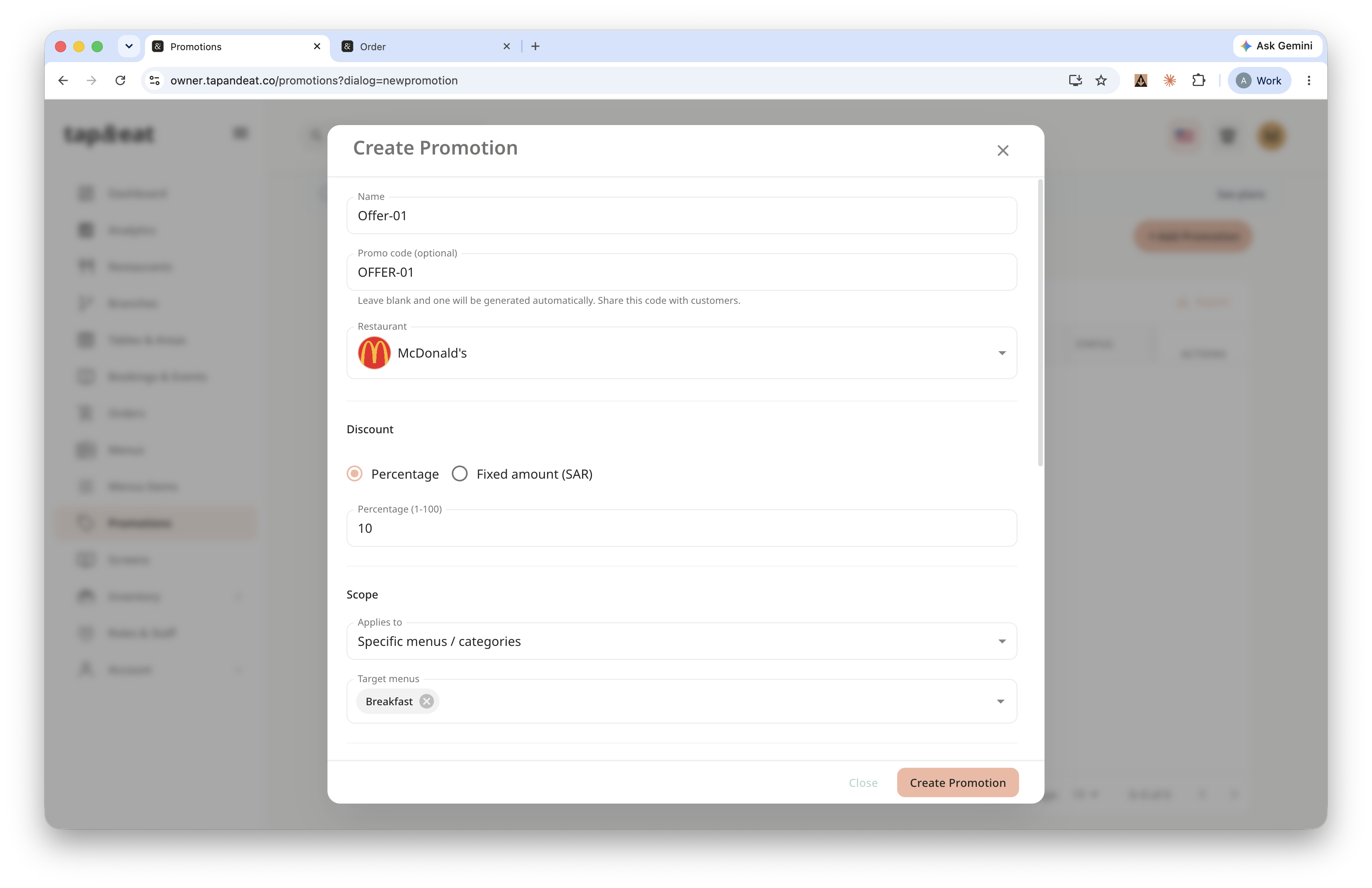
Enter a name for the promotion. Add a promo code to share with customers, or leave it blank and one will be generated. Then choose the restaurant and the branches it applies to.
Step 3 — Discount & scope
Pick the discount type — a percentage or a fixed amount in SAR — and enter the value. Under "Applies to," choose whether it covers the whole order, specific menus, or specific items.
Step 4 — Dates
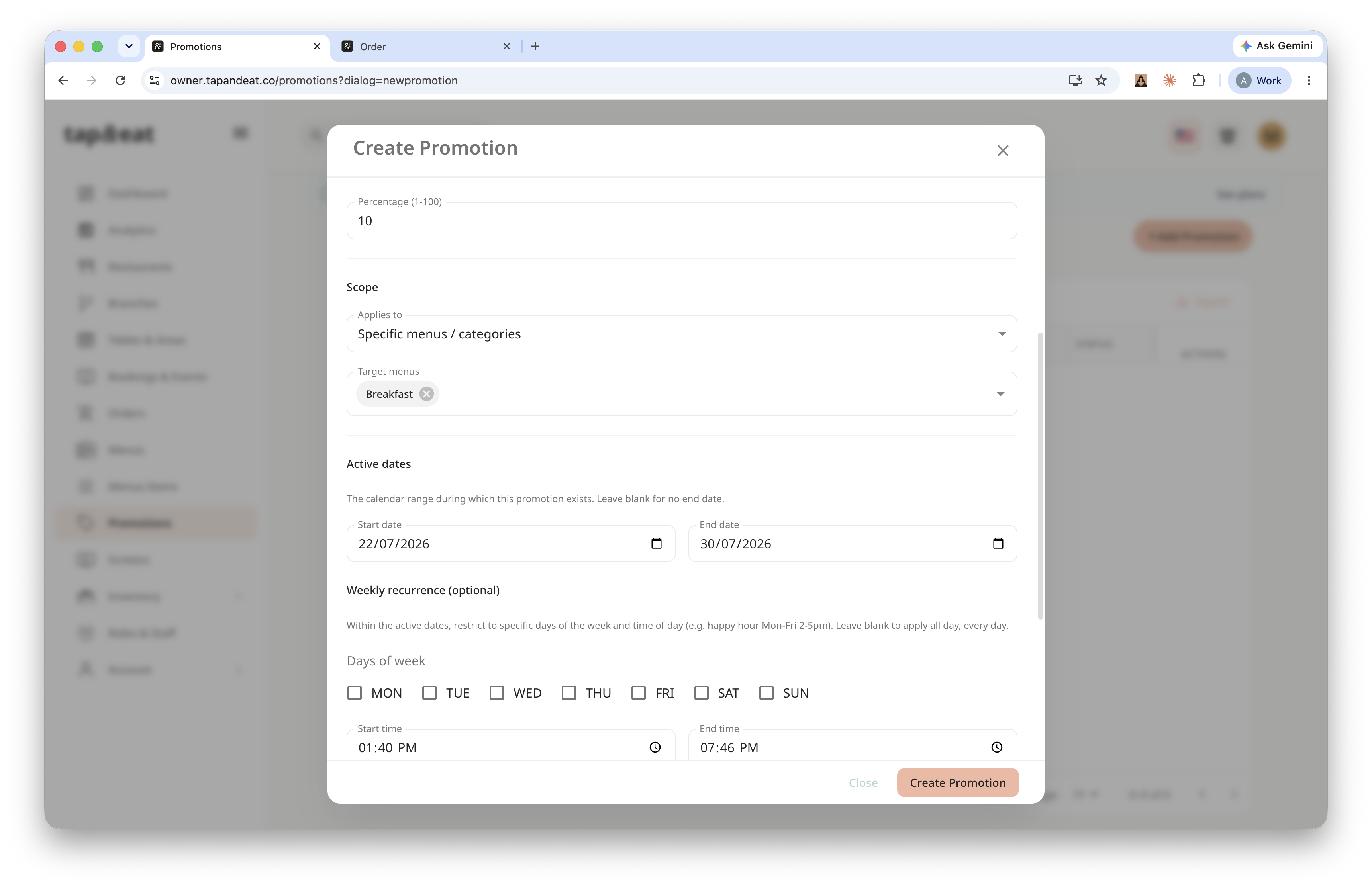
Set the start and end dates. If the offer should only run on certain days or times (for example, a weekday lunch deal), set the recurring days and times too.
Step 5 — Rules & save
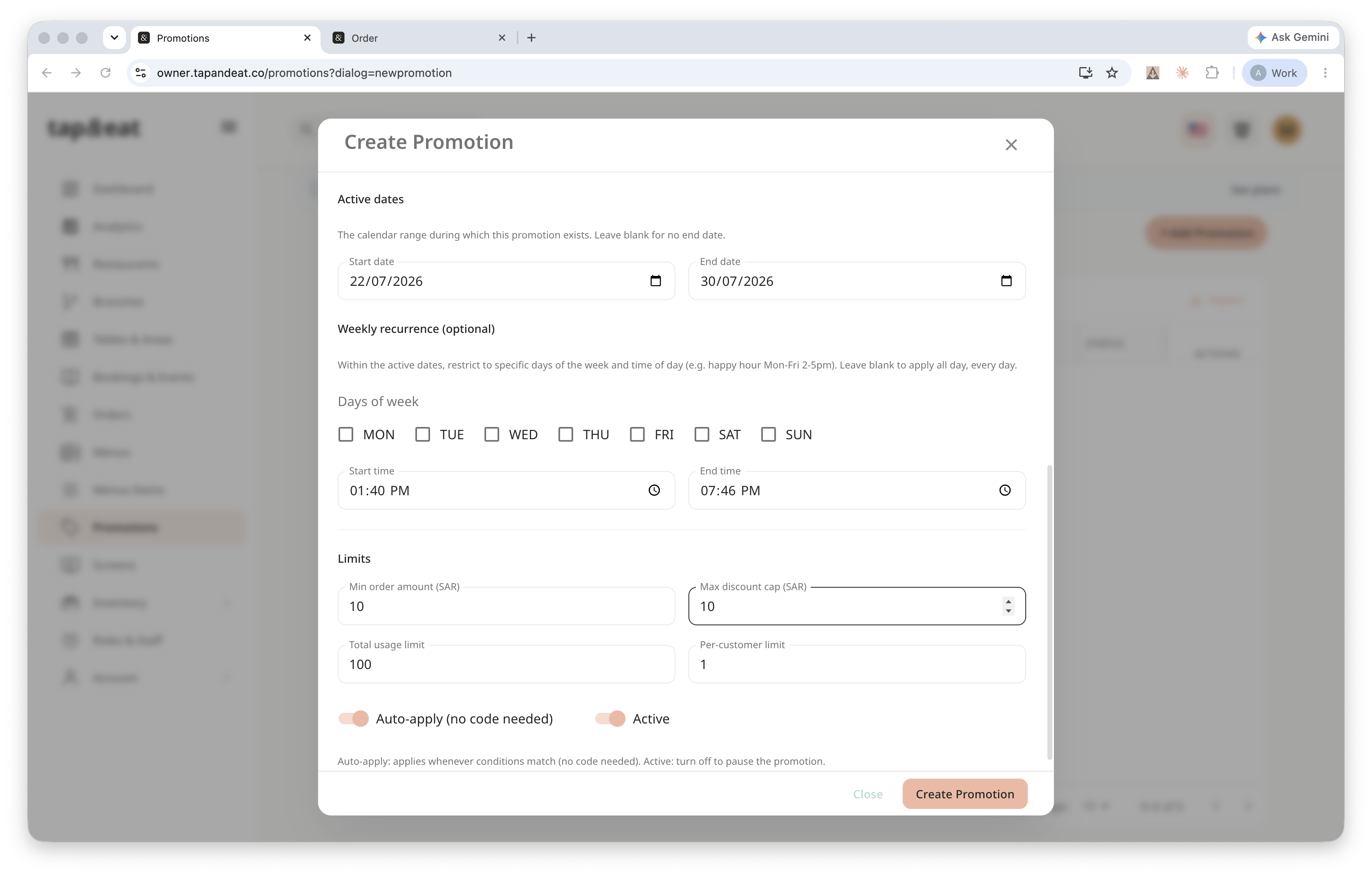
Add any limits — a minimum order amount, a maximum discount cap, a total usage limit, or a per-customer limit. Turn Active on, then click Save.
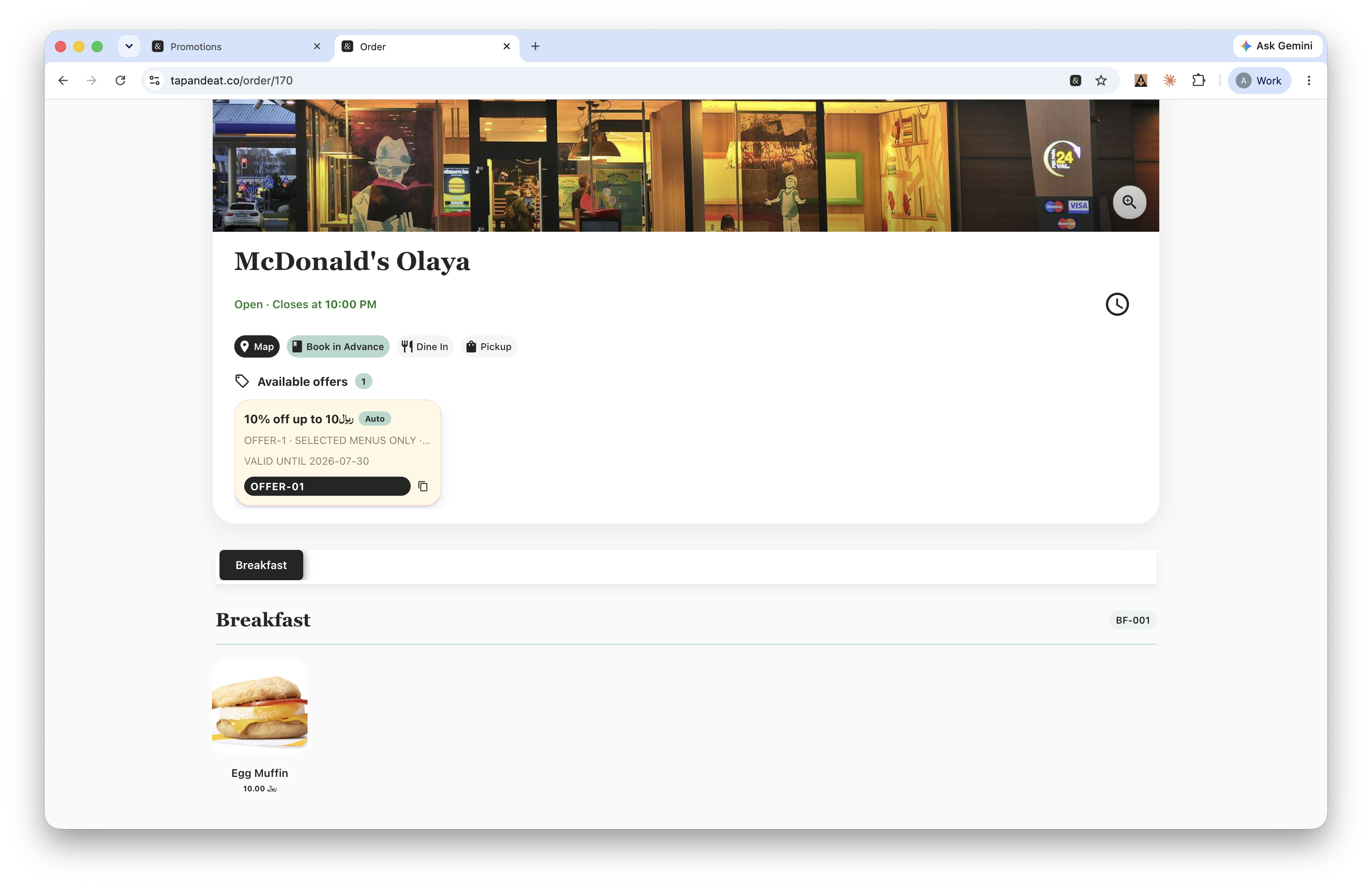
Your promotion is now live. Customers will see it (or enter the code) at checkout.