Add a menu item
Menu items are the dishes your customers order. Add them to a menu with a photo, a price, and any options like sizes or extras. Watch the video, then follow along below.
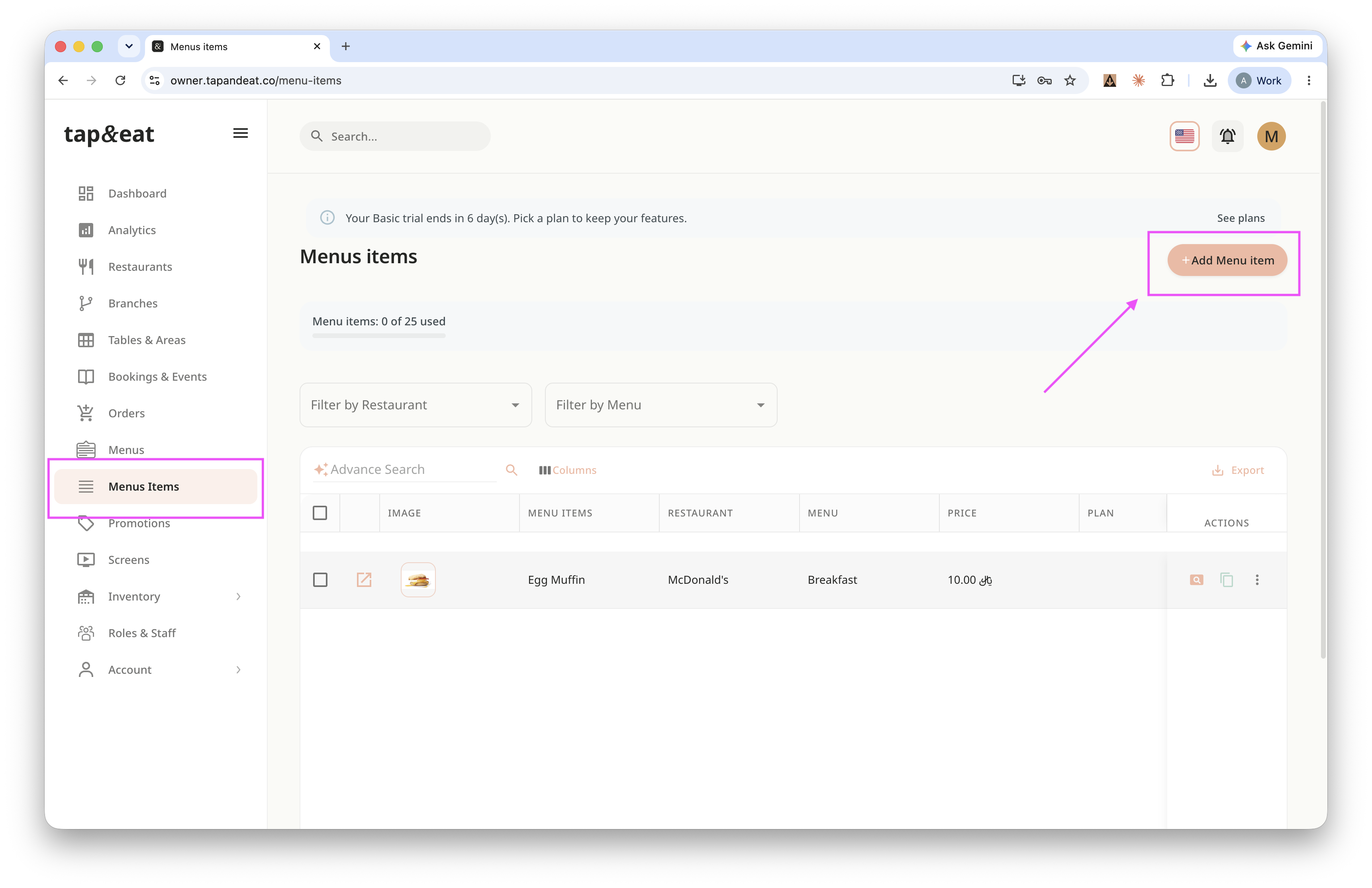
Step 1 — Add an item
Open Menu Items from the sidebar and click Add Item.
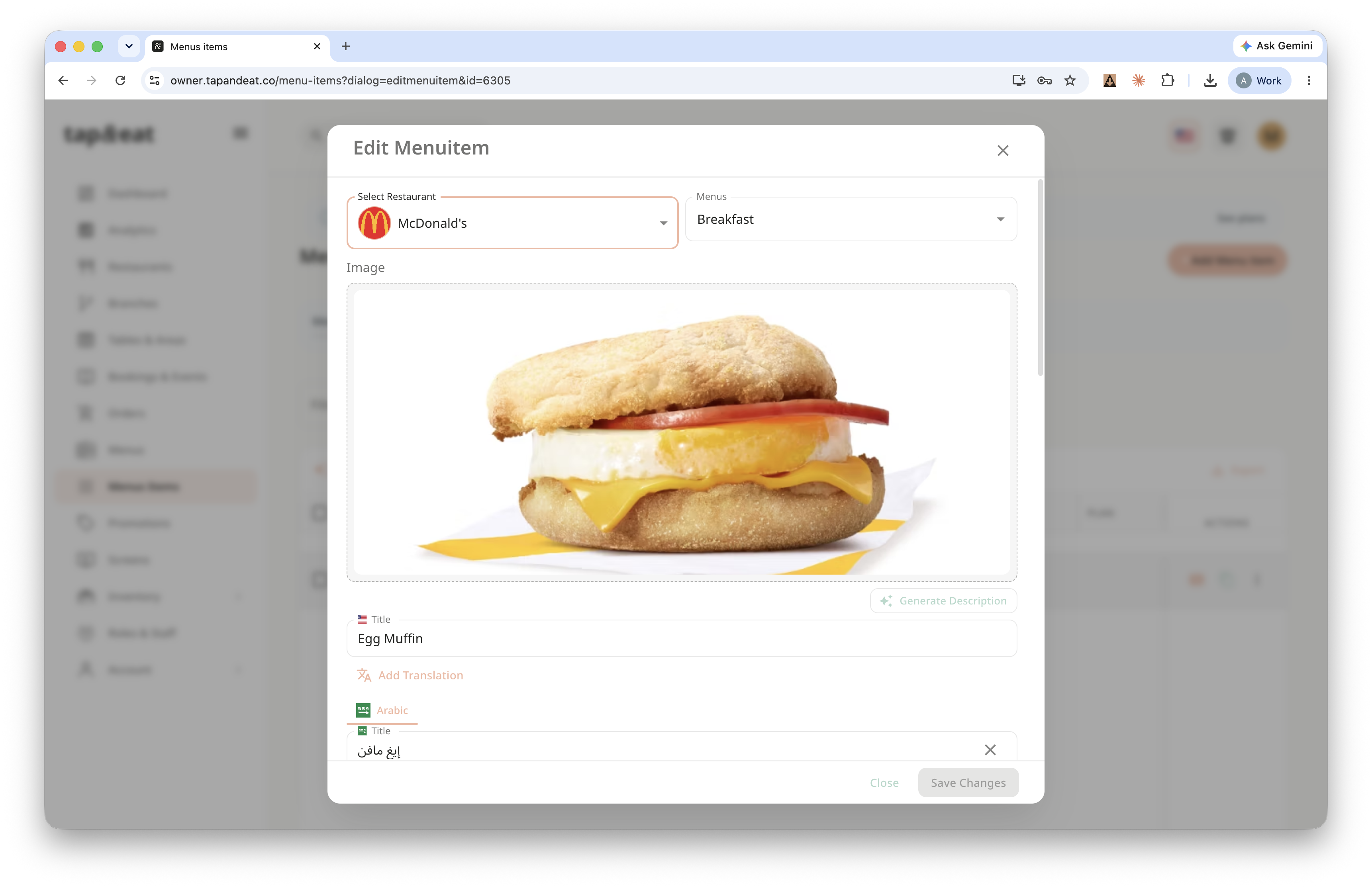
Step 2 — Choose the menu and photo
Select the restaurant and the menu this item belongs to, then upload a photo of the dish.
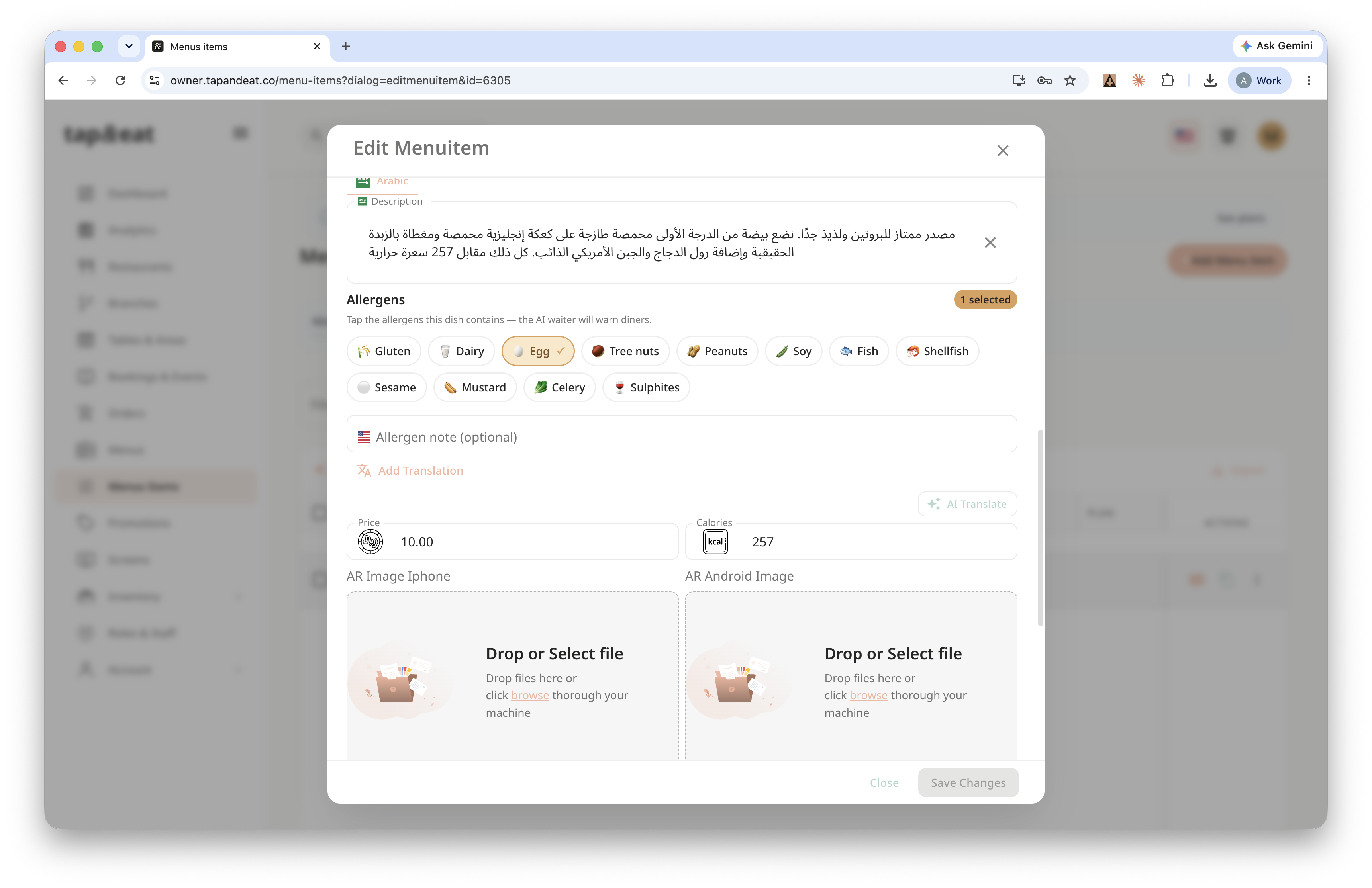
Step 3 — Item details
Enter the item title and price. You can also add a description, calories, and allergens if you want.
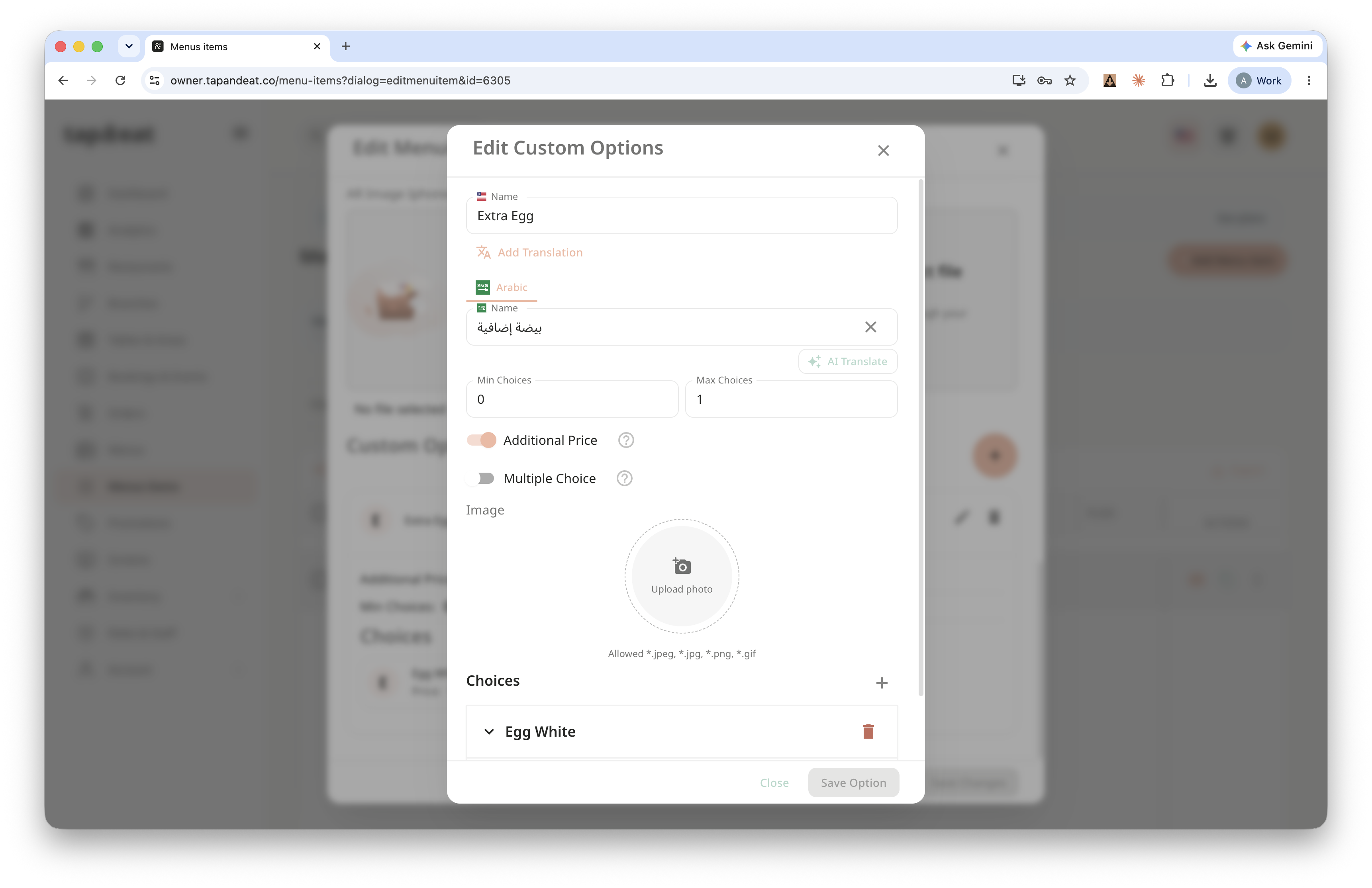
Step 4 — Options (optional)
If the item comes in different sizes or with extras, add them as custom options. Otherwise, skip this.
Step 5 — Save
Click Save. Your item now appears on the menu, ready for customers to order.
Note: You can edit the same way.